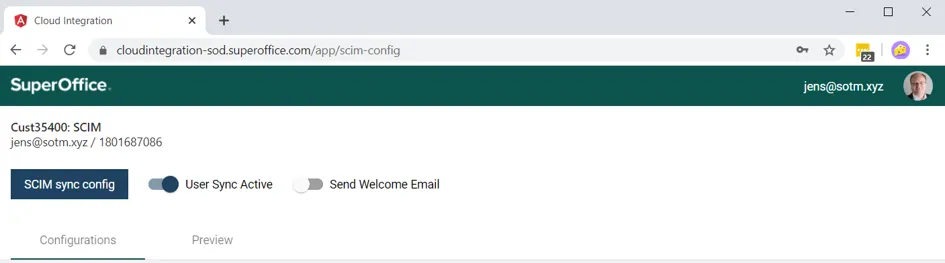
Sign in to SuperOffice Identity Manager
You need to sign in to our Identity Manager to set up and to update the mapping of users synchronized from Microsoft Entra ID (formerly AAD) to SuperOffice.
Pre-requisites
- A SuperOffice admin account linked to a Microsoft Entra account (Microsoft Entra admin not required).
Environments:
| Environment | URL |
|---|---|
| Development (SOD) | https://cloudintegration-sod.superoffice.com/app/scim-config |
| Stage | https://cloudintegration-stage.superoffice.com/app/scim-config |
| Production | https://cloudintegration.superoffice.com/app/scim-config |
To sign in
-
In a browser, go to
https://{environment}.superoffice.com/app/scim-config -
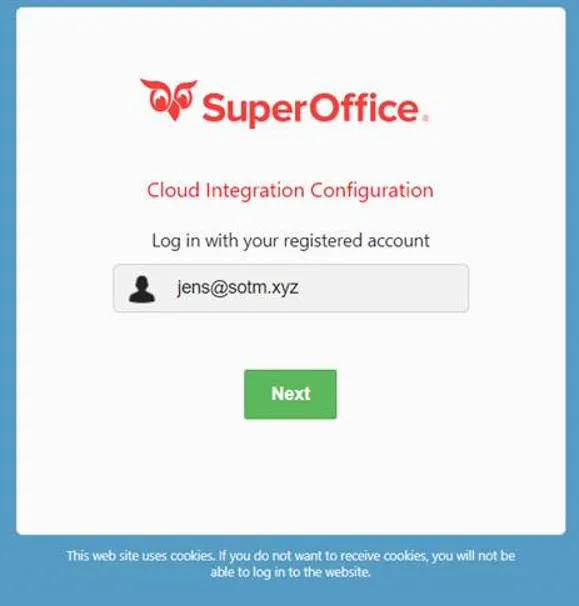
Sign in with your registered SuperOffice admin account.
-
Pick the Microsoft Entra account from the IdP. Enter your password if you are not already signed in.
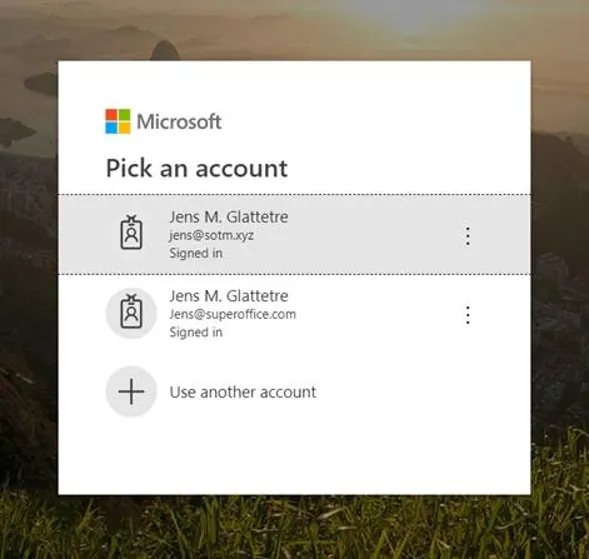
After authentication, the IdP redirects you back to the Identity Manager start page.