The Navigator
You move between the main sections of SuperOffice using the left-side Navigator.
🛈 Tip
You can change the width of the navigator by clicking above the navigator.
The SuperOffice logo 
At the upper left of the navigator is the SuperOffice logo. Click the logo to open the SuperOffice Community website. Pressing CTRL while clicking the logo is a shortcut to your own company card. (The main company is a preference that you can change.)
The navigator in Standard CRM
The navigator provides quick access to essential SuperOffice CRM features. Each icon opens a specific screen.
| Icon | Screen | Description |
|---|---|---|
| Dashboard | View reports and charts summarizing your CRM data. | |
| Companies | Manage your company records and related information. | |
| Contacts | Access and manage individual contact details. | |
| Diary | Plan and track follow-ups. | |
| Sales | Track and manage your sales opportunities. | |
| Projects | Organize and monitor project activities. | |
| Selections | Create and manage selections for campaigns or workflows. | |
| Inbox | Read and reply to incoming messages. | |
| Chat | Respond to chat inquiries from your website. | |
| Marketing | Create and send mailings and forms. | |
| Requests | Access service requests. | |
| Tools | Open external applications and websites. |
The Navigator in Settings and maintenance
| Icon | Screen | Description |
|---|---|---|
| Licenses | Manage SuperOffice licenses, view system notifications, and database information. | |
| Users | Define user accounts, groups, roles, and access options. Add or manage your company’s records. | |
| Roles | Set roles for controlling access to CRM data and features. | |
| Privacy | Adjust privacy and consent settings. | |
| SAINT | (Sales Intelligence) Create and manage status monitors for companies and projects. | |
| AI services | Configure AI-powered text and sentiment analysis and categorization of requests. | |
| Lists | Customize and manage lists used across the CRM system. | |
| Quote/Sync | Administer ERP integration settings, price lists, and products. | |
| Workflow | Define sales and project workflows. | |
| Screen designer | Customize layouts for specific user groups. | |
| Preferences | Adjust default settings for activities, video meetings, and the document library. | |
| Chat | Set up chat channels. | |
| Options | Configure global settings like search, time zones, labels, and numbering. | |
| Import | Import data into SuperOffice CRM. | |
| Fields | Define user-specific fields for customization. | |
| CRMScript | Automate tasks with scripts, macros, and event handlers, and scheduled tasks. | |
| Requests | Adjust request handling for SuperOffice Service. | |
| Customer center | Edit and manage the Customer center layout and content. | |
| System design | Advanced SuperOffice Service settings. | |
| App Store | Access apps and integrations for SuperOffice CRM. |
Navigator options
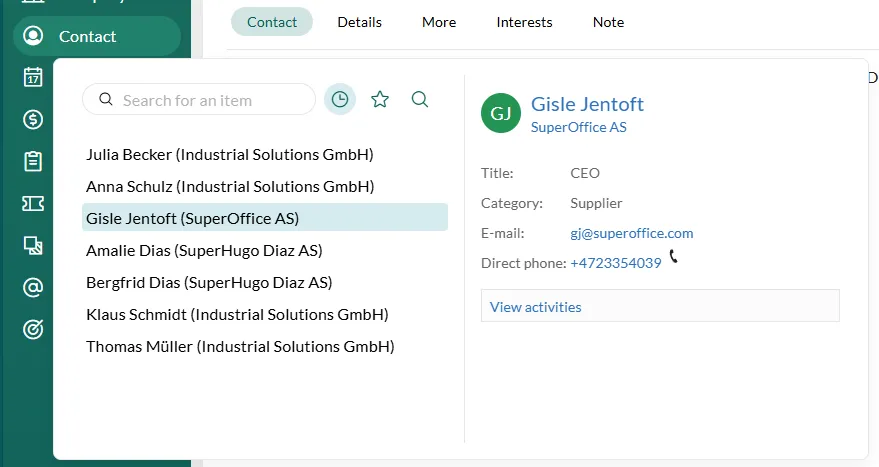
When you click a navigator button, one or more of the following options are displayed:
| Icon | Function | Description |
|---|---|---|
| History | Displays recently opened records, such as requests, contacts, or selections. | |
| Favorites | View the records you have set as favorites. | |
| Search | Shows the results of the last search. The dynamic search field above the buttons initiates a search as you type. |
🛈 Note
Clicking the Dashboard button only opens the dashboard.
If you hold the mouse pointer over a record in any the lists, a tooltip is displayed containing additional data about the record.